Thursday, April 27, 2017

How to Download Music from SoundCloud

SoundCloud is an online song music platform where artists can create, upload and share their recordings, and they can also interact with their fans. So while you are listening some beautiful musics on SoundCloud, you may wish to save them to your mobile devices so that you can enjoy the good melody whenever you like. Thankfully, there are many tools that allow you to save SoundCloud songs with a few clicks. Here are some solutions to download music from SoundCloud to your electronic devices.

1. Download SoundCloud Music with Desktop Software - Gihosoft TubeGet
Download music from SoundCloud with Gihosoft TubeGet is easy as pie as you just need a few clicks without any effort. So here I will lay out the steps.


1. Copy the URL of the song from SoundCloud and click “+Paste URL”, then the software will analyze the link automatically;

2. A new interface will pop up prompt you to select the resolution and saving location. As this is an audio file, you’d better click “YouTube to MP3” instead of “Only Download”.

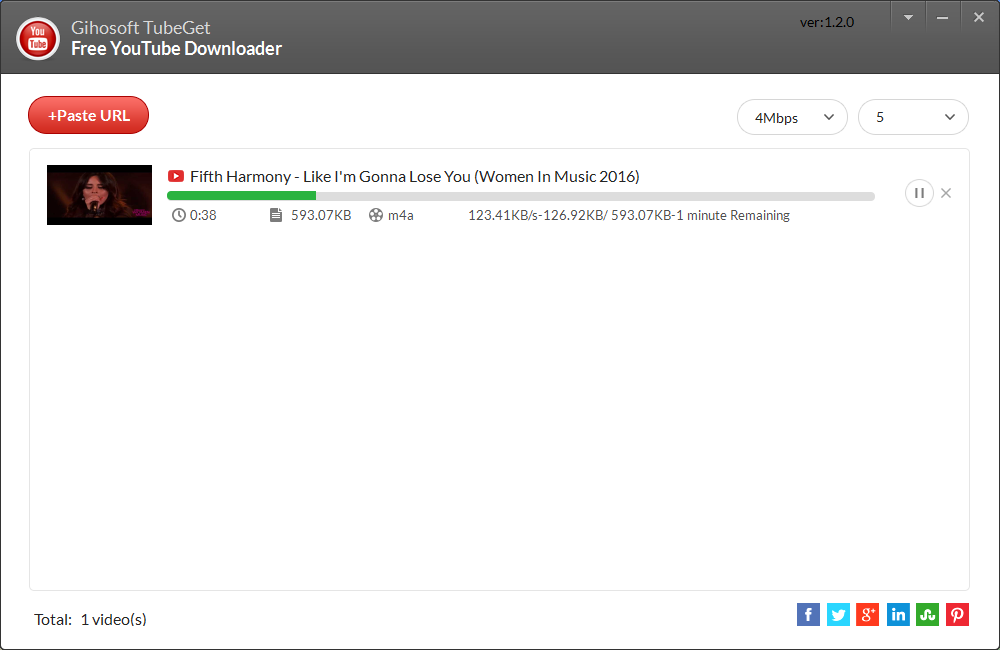
3. The last step, download. While downloading , you can download up to 5 files at a time and limit the bandwidth. Now you just wait until all the contents are finished.

2. Download SoundCloud Songs Directly Online with SoundCloud Downloader
If you are tired of installing a software every time when you need to download something, then SoundCloud Downloader will satisfy your needs. It’s an online SoundCloud music downloader, free and easy to use.


1. You just go to the SoundCloud website and copy the link of the song you want to download and open SoundCloud Downloader, then paste the URL into the box.

2. A new menu will pop up, you just need to click “Download Link” and set a saving location for the video.

3. Click “Save” to start the downloading process.

More Articles:            How to Download Video from Facebook
                                  How to Download Video from Twitter

Tuesday, April 18, 2017

Practical Method to Download Videos from Vevo

Vevo is an online music video site where you can watch tons of music videos of top artists. When you are watching your favorite singer’s MV, you may get intoxicated by the beautiful songs and want to save it to your computer so that you can playback it whenever you like.

However, the bad news is that video download is not an available option for Vevo, so you have to utilize a third party video downloader. The good news is that there are many tools that allow you to download Vevo videos with a few clicks, and many of them are novice-friendly. So here I will take Gihosoft TubeGet as an example telling you how to download Vevo videos.

Step 1. Download and Install Gihosoft TubeGet
Just download Gihosoft TubeGet in its official website, and install it in your computer. It’s a completely safe and clean software without any malicious code and ads, so you can feel free to install and configure it.


Step 2: Copy the URL of Videos You Want to Download On Vevo
After you installing Gihosoft TubeGet, open Vevo and find the videos you want to download. Then play the video and copy the URL in the address bar.


Step 3: Choose the Right Parameter

Paste the link into Gihosoft TubeGet, and it will analyze the URL automatically. After it finish parsing, a new dialog box will pop up. On this menu, you need to choose the right resolution of the download video, and give the video a location and rename it.

Step 4: Download
If you’ve got a slow internet connection but want to download a large playlist, don’t worry. You can limit the download speed so it does not interfere with any other online activities you’re working on. And you can also download up to 5 videos at a time.

                           How to Download Video from Twitter

Wednesday, April 12, 2017

An Easy Way to Download Videos from Flickr for Free

Flickr is an online photo sharing site, it’s also a good location for short videos. There are lots of videos in Flickr that worth saving. Maybe it’s from your favorite celebrities or shared by your friends and families. Or maybe it’s just technical and you want to keep it to watch over and over again. 

However, video downloading is not an available option for Flickr, which makes us turn to the video downloader tools for help. Among all kinds of video downloaders on the web that let you download Flickr videos, Gihosoft TubeGet must be the outstanding one. It can help you download Instagram videos directly to your computer without any effort, any one can learn all its features in just a few minutes.

Key Features about Gihosoft TubeGet
Gihosoft TubeGet, as its name suggests, is a video tool developed to get video from YouTube. Aside from YouTube, it also has other great features.

1. It lets you download videos from YouTube, Facebook, Twitter, Flickr and other 10,000+ websites easily.
2. Support downloading videos in SD and HD formats, as well as 4k resolution, so you can choose any famous format you like to save videos in your computer.
3. While downloading, you can also limit the bandwidth to guarantee that you can surf the Internet smoothly.
4. You can download up to 5 videos at a time.

How to Download Flickr Videos with Gihosoft TubeGet
Step 1: Copy URL of a video from the address bar and click “+Paste URL”, then the program will start to parse the URL. 


Step 2: Select your favorite resolution and saving location for your Flickr video. 

Step 3: The last step, download. 


In Conclusion

As mentioned above, Gihosoft TubeGet can be an amazing Instagram video downloader for you, with it you can download videos from Flickr easily. Now download Gihosoft TubeGet and give it a try, it won’t let you down.

Also Read:   How to Download Videos from Facebook
                      How to Download Videos from Twitter

Friday, April 7, 2017

How to Download Tumblr Videos Without Any Software

Tumblr is a kind of new media platform between traditional blogs and mircoblogging, which allows users to post texts, photos, audios and videos in in a short-form blog, and it’s very popular with young people. What if you find an useful video on Tumblr and want to download it for future reference or preservation? In this situation, a Tumblr video downloader can help you with that. So here in this post, I will introduce you a way to download videos from Tumblr with just a few clicks.

How to Download Videos from Tumblr Without Any Software
1. Right click the mouse on the Tumblr video you want to download, and select ‘Inspect’;


2. On the new HTML interface, you just tap CTRL + F on the keyboard, and a search box will appear on the lower-left corner;


3. Type ‘type="video/’ in the box and press ‘Enter’ key;

4. Find the location of ‘type="video/’, and the link before it which starts with ‘https’ is the URL of the video;


5. Right click your mouse and select ‘Open link in new tab’;


6. A new interface will pop up, play the video on the screen, then right click the mouse and select ‘Save video as’;


7. Give the video a new name and choose a saving location, then click ‘Save’.

More Related Posts:     How to Download Twitter Video
                                        How to Download Videos from YouTube

Thursday, March 23, 2017

How to Download Videos from Break in An Easy Way

Break was founded in 1998, it’s an online video platform where users can upload and share comedy video, funny pictures, and all of its contents are based on relaxed, humor and entertainment. Dedicated on providing users the most humorous videos and pictures, many people are like to relax themselves in Break after a long day hard work.

As Break is intended for bring users laughter and happiness, but sometimes when we have a slow internet connection, the buffering will decrease our joy. So it will be a better idea to download these videos first so that we can enjoy a long time of entertainment without any interruptions. But how can you download a video from Break since it doesn’t have a built-in feature to do that. Now it comes to the topic that I want to say in this post, here I will tell you how to download videos from Break.com in an easy way.

Step by Step Guide for You to Download Break Videos

Step 1. To download videos from Break, first you should install a third-party desktop software, Free YouTube Downloader, it also has name Gihosoft TubeGet. It’s a completely clean freeware without ads or any malicious code etc. Another good feature of this software is the intuitive interface and straightforward operations, so anyone can master it in a few minutes.

Step 2. When you install this freeware successfully, just open Break on your browser, and find most funny videos that you desire to save. After finding out the Break video you like, just copy the link in the address field, then open Gihosoft TubeGet.


Step 3. Press “+Paste URL” button, then the product will automatically analyze the link. When the link is parsed, a new interface will show up. On this interface, you need to select your saving directory, video formats and resolutions.

Step 4. Click “Download”button, then this free YouTube downloader will start the downloading process. In the meantime, you can limit the download speed if you internet speed is not very fast. If you connection is good, you can download 5 videos simultaneously. Now you just need to sit tight to wait for all the videos completed.

In Conclusion
As Break is an online video site features comedy videos and funny pictures, it can make us laugh. So just download the most humorous content in Break using this method to let your life full of laughter.

More Related Articles: How to Download Twitter Video

                                     How to Download Videos From Facebook

Thursday, March 16, 2017

Free Dailymotion Downloader - How to Download Videos from Dailymotion

Dailymotion is a French video sharing site which allows users to upload, share and watch all kinds of videos. The most well known feature about Dailymotion is that it can support the videos of OGG, which is a free, open container format. Compared with other online video sites, Dailymotion is famous for its short videos which are in high definition.

The site distributes a series of popular videos every day, includes funny footages, hit songs, movie trailers, sports videos, professional tutorials and daily viral videos. Many users may want to save their favorite videos to their computer so they can watch them without being connected to the Internet, and they can also transfer these videos to their mobile devices, like smartphones and tablets. So, in this post, I will give you some detailed steps to download videos from Dailymotion using a third-party software, Free YouTube Downloader, also called as Gihosoft TubeGet, so you can enjoy your all day long videos without any interruption.

Step One: Open Dailymotion on your browser, search for the videos you want to download, and copy the URL of the video on the address line.


Step Two: Open Gihosoft TubeGet and click “Paste Link”, and the software will parse the URL automatically, after that, a new dialog box will pop up prompts you to set your ideal parameters. 


Step Three:
You can feel free to choose whether to download the video as a video file or a audio file, you can choose the format and resolution you want to save the video, it’s also your choice to choose the output directory and give your video a name.

Step Four: Click Download, then it starts to download, you just sit tight and wait it to be finished. While downloading, you can delimit the downloading speed if you have a low connection. Gihosoft TubeGet can download up to 5 videos at the same time, so don’t hesitate to download multiple videos at a time.

The Verdict:

As Dailymotion is one of the biggest and most popular video-sharing websites in Europe for users to watch multiple videos of different contents, so it will be helpful to download all those videos on computer to have a non-stop watching. With Gihosoft TubeGet, downloading videos from Dailymotion is just a piece of cake.


                           How to Download Instagram Video

Tuesday, March 7, 2017

How to Download Videos from Metacafe

Metacafe is a video-sharing website focused on short-form videos, users can use it to upload, watch and share videos contents in the categories of movies, video games, sports, music, documentary, current affairs and TV serials. The content of the websites are manually screened by its commentators, so that the quality of the video contents are assured and piracy is refused. Hence, it attracts many people to upload original videos of high quality.
As Metacafe has so many high quality original videos, it will benefit the users greatly as they can easily find many valuable videos on it. But there is a problem, if you want to find a tutorial video from Metacafe, how can you download it so that you can playback it for further study? No worry, in this article, I will tell you how to keep videos from Metacafe to your computer using a third-party software, Gihosoft TubeGet. As it has both Windows version and Mac version, so you can utilize it no matter you are a Windows user or a Mac user.

Easy Steps to Download Videos From Metacafe Using Gihosoft TubeGet

Step 1. Download and Install Gihosoft TubeGet

Just go to the official website of Gihosoft TubeGet to download the latest version, then install the program step by step. As Gihosoft TubeGet is a completely clean software without ads, bundled software, plugin or any malicious code, so you can feel free to download and install it without any security problems.

Step 2. Find the Videos You Want to Download from Metacafe
In this step, open Metacafe on your browser, and find the videos you want to save. After finding out the Metacafe video you like, you just need to simply copy the link in the address field, and you can go to next step, just so easy.

Step 3. Set Parameter of Videos

Click the “+Paste URL” button, then the product will automatically analyze the link. When the link is parsed, a dialog box will pop up automatically prompting you to select your directory location, video formats and resolution.


Step 4. Download Metacafe Videos
Press “Download”button, the software starts downloading Metacafe videos. In the downloading process, you can limit the download speed if you have a slow internet connection. If you connection is good, you can download 5 videos at the same time.