Years ago, cinematographer shoot videos with standard cameras that capture everything in the direction in which they're pointed. But now we have 360-degree video, the game changes, and it revamps how the story is told.
What Is 360°Video?
360°video, or 360-degree video, also known as immersive videos or spherical videos, is a video recorded in all directions, giving you a complete 360-degree view. We know traditional videos quite well, once they're uploaded to a streaming website like YouTube, the steps for watching them are usually pretty simple: click the play button, sit back, and enjoy. But if you are watching a 360 video, you're able to control the viewing direction and watch the video from whatever perspective you'd like.
How To Make Your Own 360-degree Video?
To create your own 360-degree video, a special set of cameras are requisite, with which you can record a video in every direction at the same time. It’s your choice to decide what angle it starts to play at and what angles the viewer can see it from. Generally you need to drag your cursor around, or you can just move your fingers if you own a mobile device. As all of the cameras are recording simultaneously, it’s easy to understand that audio is also recorded perfectly so that you can play it alongside the video with flawless efficiency.
How Can I Get A 360°Video?
YouTube, the largest UGC streaming video site, has possession of different kinds of videos, such as 4K & 8K videos, 3D videos, and 360-degree videos as well. However, the question is that YouTube doesn’t have an easy passage for users to download their videos. But with the right software, you can easy to have access to these videos. To get videos from YouTube, I recommend Gihosoft TubeGet, a powerful and fast YouTube downloader, allows users to download infinite videos from YouTube in a secure way. Here I will show you how to download 360 video from YouTube with Gihosoft TubeGet.
Simple Steps To Save 360°Videos From YouTube
Step 1. Find a 360 degree video on YouTube and copy the video link, then open Gihosoft TubeGet and press “+ Paste URL” link.
Step 2. On the resolution panel, just select a quality type and saving location.
Step 3. Press 'Download' button. Then it remains only to wait until the downloading is completed.
More Article: How to Download YouTube Video on Android
How to Convert YouTube Videos to MP3
Monday, December 4, 2017

Thursday, November 16, 2017
How to Watch & Download YouTube Videos in Blocked Countries
Part l. How to Watch YouTube Videos in Blocked Countries
In the modern world, the majority of multimedia contents can easily be accessed online thanks to the powerful streaming video sites, such as YouTube. As the largest UGC video site in the world, we can watch almost infinite things in YouTube. From educational tutorials and MV to documentaries and TV series etc. However, there are a few places in the world that YouTube is blocked, such as China. So, in this situation, how can you watch YouTube videos smoothly without any obstruction? The answer is a VPN software.
For all the VPN software I’ve used, I recommend Lantern, a free peer-to-peer censorship circumvention tool. The software is financed through US Department of State seed funding and is aimed at helping web users in censorious countries, especially in China and across the Middle East. The service supports Chinese, Arabic, and several other languages.
Lantern has both free and pro version, and it’s compatible with Windows, MAC & Android platform. Besides, it’s very easy to use, you just download and install it in your device, and you can start to stream, browser and use your software, not needing any other configurations. As an advanced tool, it uses geo-optimized server and many other techniques to bypass Internet censorship & firewalls, which enables users to keep surfing without any problem at a fast speed. To keep your devices in a safe environment, Lantern encrypts all of you traffic to protect your data and privacy.
Part 2. How to Download YouTube Videos for Playing Offline
YouTube videos are on tap when you have good Internet connection available, but there are some occasions where you are forced to go offline. For example, when you are traveling, or when are in the suburbs where reliable broadband is as rare as reliable buses. No worry, with the right free YouTube downloader, you will be able to download any videos to view them offline.
However, it is really hard to pick out the best one because there are many downloader with different features in the market. If you are still looking for the best free YouTube downloaders, you have come to the right place. We have rounded up the top 5 Free YouTube Downloaders based on technicians' stringent testing and customers' reviews, just go through this article, and you will find the one suits you the best: 5 Best Free YouTube Downloader to Save YouTube Videos
Note: You should only download videos if you have permission from the copyright holder. Unauthorized downloading is against YouTube's terms of service.
In the modern world, the majority of multimedia contents can easily be accessed online thanks to the powerful streaming video sites, such as YouTube. As the largest UGC video site in the world, we can watch almost infinite things in YouTube. From educational tutorials and MV to documentaries and TV series etc. However, there are a few places in the world that YouTube is blocked, such as China. So, in this situation, how can you watch YouTube videos smoothly without any obstruction? The answer is a VPN software.
For all the VPN software I’ve used, I recommend Lantern, a free peer-to-peer censorship circumvention tool. The software is financed through US Department of State seed funding and is aimed at helping web users in censorious countries, especially in China and across the Middle East. The service supports Chinese, Arabic, and several other languages.
Lantern has both free and pro version, and it’s compatible with Windows, MAC & Android platform. Besides, it’s very easy to use, you just download and install it in your device, and you can start to stream, browser and use your software, not needing any other configurations. As an advanced tool, it uses geo-optimized server and many other techniques to bypass Internet censorship & firewalls, which enables users to keep surfing without any problem at a fast speed. To keep your devices in a safe environment, Lantern encrypts all of you traffic to protect your data and privacy.
Part 2. How to Download YouTube Videos for Playing Offline
YouTube videos are on tap when you have good Internet connection available, but there are some occasions where you are forced to go offline. For example, when you are traveling, or when are in the suburbs where reliable broadband is as rare as reliable buses. No worry, with the right free YouTube downloader, you will be able to download any videos to view them offline.
However, it is really hard to pick out the best one because there are many downloader with different features in the market. If you are still looking for the best free YouTube downloaders, you have come to the right place. We have rounded up the top 5 Free YouTube Downloaders based on technicians' stringent testing and customers' reviews, just go through this article, and you will find the one suits you the best: 5 Best Free YouTube Downloader to Save YouTube Videos
Note: You should only download videos if you have permission from the copyright holder. Unauthorized downloading is against YouTube's terms of service.
Tuesday, November 7, 2017
How to Download YouTube Videos to Your SD Card
Speaking of downloading YouTube videos, you may think of a question: is it legal to download YouTube videos? According to Google's terms of service for YouTube, as long as you’re downloading a video for your personal use, then it’s legal. On the other hand, these YouTube downloading tools are merely technology, and technology is morally neutral. Generally, it’s rarely illegal to use a specific form of technology, it’s what you do with it that makes it legal or illegal.
Now, let’s come to the topic of this post: how to download YouTube videos to your SD card (memory card) without any obstruction? In terms of downloading YouTube videos, there are tons of video downloader that can deal with that task. So here I will tell you how to download YouTube videos to your SD card in a simple and fast way.
How to Download YouTube Videos to SD Card for Free
To download YouTube videos to your memory card, you can try a desktop video downloader, Gihosoft TubeGet. Lots of video downloading apps are saturated with adware, spyware or aggressive pop-up ads, Gihosoft TubeGet is one of the few exceptions. To use Gihosoft TubeGet to save YouTube videos to your SD card, first you need to keep your SD card connecting with your PC, then you just follow those 4 quite simple steps below to save the YouTube videos onto it.
Step 1: Search for the video you want to download from YouTube, then copy the link in the address line;
Step 2: Open Gihosoft TubeGet and paste the URL into the software, after TubeGet parses the link successfully, a video resolution panel will show up;
Step 3: On the new panel, you just need to set the resolution you like, and choosing memory card as your default downloading location;

Step 4: Click “Download” and start the downloading process.
Now, let’s come to the topic of this post: how to download YouTube videos to your SD card (memory card) without any obstruction? In terms of downloading YouTube videos, there are tons of video downloader that can deal with that task. So here I will tell you how to download YouTube videos to your SD card in a simple and fast way.
How to Download YouTube Videos to SD Card for Free
To download YouTube videos to your memory card, you can try a desktop video downloader, Gihosoft TubeGet. Lots of video downloading apps are saturated with adware, spyware or aggressive pop-up ads, Gihosoft TubeGet is one of the few exceptions. To use Gihosoft TubeGet to save YouTube videos to your SD card, first you need to keep your SD card connecting with your PC, then you just follow those 4 quite simple steps below to save the YouTube videos onto it.
Step 1: Search for the video you want to download from YouTube, then copy the link in the address line;
Step 2: Open Gihosoft TubeGet and paste the URL into the software, after TubeGet parses the link successfully, a video resolution panel will show up;
Step 3: On the new panel, you just need to set the resolution you like, and choosing memory card as your default downloading location;

Step 4: Click “Download” and start the downloading process.
More Article: How to Download YouTube Videos on Your Android Phone
Thursday, November 2, 2017
How to Download YouTube Videos as MOV
MOV is one of the major video formats, and there are many MOV videos created every day. If you need a MOV video, you may think of downloading a video from YouTube. The bad news is that the original format of videos in YouTube is MP4. In this situation, you might consider using a free video converter to convert this MP4 video to MOV format. That is a good solution, but it’s quite inconvenient. So how can I directly download a YouTube video as MOV? The answer is Gihosoft TubeGet, which has the feature of downloading & converting video as different video formats. Now I will show you how to use Gihosoft TubeGet to save YouTube videos as MOV.
How to Save a YouTube video as MOV for Free with Gihosoft TubeGet
1. Search for Gihosoft TubeGet on Google and then enter into the official site. On the site, just download the software and install it on your computer.
2. Go to YouTube and find the video You’d like to save, then copy the URL in the address line. You should bear in mind that the downloading link is the URL in the address line, not the short URL for sharing.
3.Open Gihosoft TubeGet and click “+Paste URL” button, after about 8 seconds, a new panel will show up. In the new panel, you are allowed to choose the video resolution, saving location, and your destination format of as well. To download the target video as MOV, you should tap “Convert to” and select MOV as your destination downloading format.
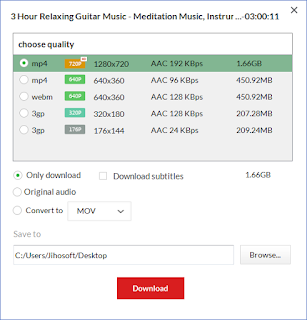
4. Click “Download” and the software will start to save the video.
More Post: How to Download Video from Instagram
How to Save a YouTube video as MOV for Free with Gihosoft TubeGet
1. Search for Gihosoft TubeGet on Google and then enter into the official site. On the site, just download the software and install it on your computer.
2. Go to YouTube and find the video You’d like to save, then copy the URL in the address line. You should bear in mind that the downloading link is the URL in the address line, not the short URL for sharing.
3.Open Gihosoft TubeGet and click “+Paste URL” button, after about 8 seconds, a new panel will show up. In the new panel, you are allowed to choose the video resolution, saving location, and your destination format of as well. To download the target video as MOV, you should tap “Convert to” and select MOV as your destination downloading format.

4. Click “Download” and the software will start to save the video.
More Post: How to Download Video from Instagram
Monday, October 30, 2017
How to Download YouTube Videos as AVI
Gihosoft TubeGet is a free application developed intended for helping users to download videos from multiple online video sites, such as YouTube, Vimeo, Facebook, Twitter & Tumblr etc. The original format of videos in YouTube is MP4, but what if you are in need of a video in AVI format. Of course you can use a video downloader to download the video at first, then utilize a video converter to convert the video to your ideal format. But why speed extra time and energy while Gihosoft TubeGet can deal with this problem in just a few clicks. So here in this post, I’m going to show you how to download YouTube videos as AVI by Gihosoft TubeGet.
Easy Steps to Download YouTube Video as AVI Using Gihosoft TubeGet
1.Google Gihosoft TubeGet and go to the official site, then download and install it on your computer;
2.Go to YouTube and find the video You’d like to save, copy the URL in the address line. Then Open Gihosoft TubeGet and click “+Paste URL” button, after about ten seconds, a new interface will show up;
3.In the new panel, you are allowed to choose the video resolution, saving location, and your destination format as well. To download the target video as AVI, you should click the the box behind “Convert to” and select AVI as your destination saving format;
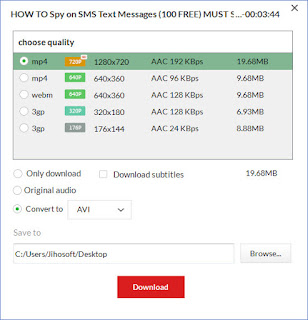
4.The last step, click “Download” and start the saving process.
More articles: How to Download YouTube Videos on Android
Easy Steps to Download YouTube Video as AVI Using Gihosoft TubeGet
1.Google Gihosoft TubeGet and go to the official site, then download and install it on your computer;
2.Go to YouTube and find the video You’d like to save, copy the URL in the address line. Then Open Gihosoft TubeGet and click “+Paste URL” button, after about ten seconds, a new interface will show up;
3.In the new panel, you are allowed to choose the video resolution, saving location, and your destination format as well. To download the target video as AVI, you should click the the box behind “Convert to” and select AVI as your destination saving format;

4.The last step, click “Download” and start the saving process.
More articles: How to Download YouTube Videos on Android
Thursday, September 28, 2017
YouTube Subtitle Downloader - How to Download YouTube Subtitle
When the topic of downloading YouTube subtitles comes up, you may want to ask, ”Why would I want to download the subtitle?” Well, if English is your mother tongue, surely you don’t need a subtitle when you are watching a YouTube video. However, if you are not a native speaker, then the subtitle is an indispensable material for you to learn English. Now let’s just get down to business and walk you through how to download YouTube subtitles.
3 Best Free YouTube Subtitle Downloader
1. Gihosoft TubeGet
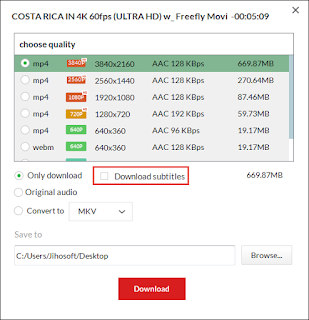
As we can see from its name, Gihosoft TubeGet was developed specially for downloading videos from YouTube. Another great thing about this software is that it also provides a passage to save YouTube subtitle.
2. DownSub
If you do not want to install any desktop software, then you may try DownSub. As we can see from its website, DownSub is a free web application that can download and save subtitles directly from Youtube, DramaFever, Viki and more. The downloading steps is quite simple, anyone can master it in just a few minutes.
3. LibSubs
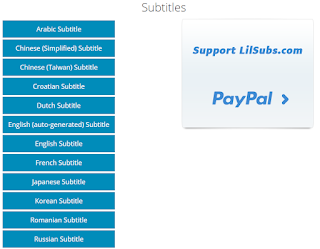
Like DownSub, LilSubs Subtitle Downloader is also an online subtitle downloader that allows users to save subtitles from sites like YouTube, Viki, Dramafever, TED and more. All you need is the URL of the video that has the subtitle you want to download. Enter it in the text box above and simply click 'Download'. LilSubs will then fetch download links in all possible languages that the particular site provides.
3 Best Free YouTube Subtitle Downloader
1. Gihosoft TubeGet
As we can see from its name, Gihosoft TubeGet was developed specially for downloading videos from YouTube. Another great thing about this software is that it also provides a passage to save YouTube subtitle.

2. DownSub
If you do not want to install any desktop software, then you may try DownSub. As we can see from its website, DownSub is a free web application that can download and save subtitles directly from Youtube, DramaFever, Viki and more. The downloading steps is quite simple, anyone can master it in just a few minutes.
3. LibSubs
Like DownSub, LilSubs Subtitle Downloader is also an online subtitle downloader that allows users to save subtitles from sites like YouTube, Viki, Dramafever, TED and more. All you need is the URL of the video that has the subtitle you want to download. Enter it in the text box above and simply click 'Download'. LilSubs will then fetch download links in all possible languages that the particular site provides.

How to Download YouTube Subtitle for Free?
These three free YouTube subtitle downloader can all download subtitle in an easy and fast way. Here I will take Gihosoft TubeGet as an example telling you how to download subtitle from YouTube for free.
Simple Steps to Save YouTube Subtitle with Gihosoft TubeGet:
Step 1: Go to YouTube and find the video that you wish to download and copy the video link. Then open Gihosoft TubeGet and input the video link into the product.
Step 2: On the video resolution panel, choose the video format that you want to save. Most importantly, don’t forget to tick“Download subtitles”.
Step 3: Hit the download button and start to download the video, the subtitle format is VTT.
To Sum Up
During my test, these 3 free YouTube subtitle download software works well for saving subtitles, the download speed is decent as well. They are all very easy to use and I’m sure you will like them.
More Artiles: How to Download YouTube Videos Online
Thursday, September 21, 2017
Two Best Online YouTube Downloader to Save YouTube Videos Online
What’s the best way to download YouTube videos for free? There are a thousand Hamlets in a thousand people's eyes. To save a video from YouTube, usually you can download a 3rd party software, and actually there are a wide range of desktop software on the web that can do a very good job on grabbing YouTube videos. If you don’t trust a third party software and want to save the space of your computer, then you may try an online YouTube downloader. To help you make a better decision, I have rummaged through the Internet and find two very useful online video downloader tool for you. To make you relax, I have tested these tools in advance and they prove themselves to be excellent when downloading videos from YouTube, and the downloading is speedy. So, you can try any of them without regret.
Two Best Free Online YouTube Downloader To Keep YouTube Videos
1. DreDown
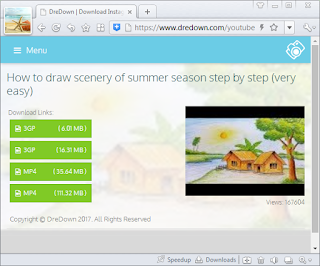
DreDown is a completely free online video downloader for YouTube, Facebook, Instagram, Vimeo & Vevo etc. The interface is concise, ad-free, and there is also a short tutorial. To use DreDown to download videos, you can simply follow these steps bellow:
Step 1: Search the video you want to download from YouTube, Tumblr, Vine......
Step 2: Copy the link of the video into the box. After the site analyzing the link successfully, it will redirect to a new interface.
Step 3: Choose the video resolution you want to download and click it.
Step 4: Hit “Download” and wait for the videos to be finished.
2. TubeNinja
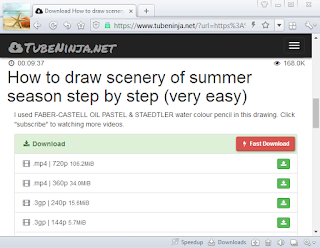
TubeNinja is another online video downloader like DreDown which helps users to save video/audio from online hot video sites as easy as winking. It works on your computer or smartphone without any obstruction. Besides it’s 100% secure without any malicious code. To download YouTube videos with TubeNinja, there are 3 simple methods for you:
Method 1: Find the video you want to save and open it, add dl in the URL before site name. For example, if the video link you want to download is “https://www.youtube.com/watch?v=weQhGanDQpw”, you just put dl before youtube then it will be like this: “https://www.dlyoutube.com/watch?v=weQhGanDQpw”. Finally press enter key and start to download.
Method 2: Copy the link of the video you want to download and paste it in the field above. Then you just select your ideal video format and start the downloading process.
Method 3: You can also use bookmark to download YouTube videos. First you should drag “TubeNinja this button” to the bookmark bar; then when you come across the video you want to download, you just click the bookmark and it will quickly access the program’s functions.
Final Words
All these two online YouTube downloader work smoothly when saving YouTube videos and do not eat up a lot of CPU and memory. I’d love to know what else you would add to this list? How do you download YouTube videos online? You can leave your tips, recommendations, and opinions in the comments section by Disqus.
More Article: How to Save Instagram Video
How to Download YouTube Playlist
Two Best Free Online YouTube Downloader To Keep YouTube Videos
1. DreDown
DreDown is a completely free online video downloader for YouTube, Facebook, Instagram, Vimeo & Vevo etc. The interface is concise, ad-free, and there is also a short tutorial. To use DreDown to download videos, you can simply follow these steps bellow:
Step 1: Search the video you want to download from YouTube, Tumblr, Vine......
Step 2: Copy the link of the video into the box. After the site analyzing the link successfully, it will redirect to a new interface.
Step 3: Choose the video resolution you want to download and click it.
Step 4: Hit “Download” and wait for the videos to be finished.

2. TubeNinja
TubeNinja is another online video downloader like DreDown which helps users to save video/audio from online hot video sites as easy as winking. It works on your computer or smartphone without any obstruction. Besides it’s 100% secure without any malicious code. To download YouTube videos with TubeNinja, there are 3 simple methods for you:
Method 1: Find the video you want to save and open it, add dl in the URL before site name. For example, if the video link you want to download is “https://www.youtube.com/watch?v=weQhGanDQpw”, you just put dl before youtube then it will be like this: “https://www.dlyoutube.com/watch?v=weQhGanDQpw”. Finally press enter key and start to download.
Method 2: Copy the link of the video you want to download and paste it in the field above. Then you just select your ideal video format and start the downloading process.
Method 3: You can also use bookmark to download YouTube videos. First you should drag “TubeNinja this button” to the bookmark bar; then when you come across the video you want to download, you just click the bookmark and it will quickly access the program’s functions.

Final Words
All these two online YouTube downloader work smoothly when saving YouTube videos and do not eat up a lot of CPU and memory. I’d love to know what else you would add to this list? How do you download YouTube videos online? You can leave your tips, recommendations, and opinions in the comments section by Disqus.
More Article: How to Save Instagram Video
How to Download YouTube Playlist
Subscribe to:
Posts (Atom)