Gihosoft TubeGet, an absolutely free YouTube downloader, is capable of downloading videos you like from YouTube and other hot video sites in many resolutions and formats, completely satisfies your appetite for offline videos.
Monday, September 3, 2018
如何下载YouTube地区限制视频
下载普通的YouTube视频是一件非常简单的视频,因为网上有很多这类的软件,网站或者是插件等。但是有些时候,你会发现这样一个问题,当你想要观看一个视频的时候,却发现打不开,上面显示“上传用户已禁止在您的国家/地区播放次视频”(The uploader has not made the video available in your country)。
那这个时候你该怎么办呢?当然一般情况下,把你的VPN软件切换IP就可以了。但是,还有某些特例,比如有的视频只能在某一个特定的地区播放,其他地区的IP都不能播放。如果你一个一个地方的去尝试,未免太麻烦了。下面我来告诉你方法。
1. 首先,你需要进入一个网站,地址:http://polsy.org.uk/stuff/ytrestrict.cgi。然后复制被限制地区播放的YouTube视频地址,粘贴进方框,点击“Submit”。然后下面就会出现该视频可以播放和被限制播放的地区。Allowed countries是可以播放的地区,Disallowed countries是被限制播放的国家和地区。
2. 打开VPN软件,笔者这里使用的是NordVPN,有很多国家的节点。然后选择目标视频所在的国家的节点,连接,软件会自动配置IP地址。
3. 下载并安装YouTube视频下载软件Gihosoft TubeGet,复制目标视频的地址,点击“粘贴链接”按钮,软件开始分析链接。
4. 在分辨率窗口上选择要下载的视频分辨率和视频保存位置,点击“下载”,视频开始下载,百分比进度条开始走动。
Thursday, August 30, 2018
YouTube视频如何在Mac电脑上下载
如果你是自媒体行业的,那你一定知道这个行业最缺少的就是素材了,无论是发文章还是做视频类的内容。文章类的素材比较好找,基本上稍微大一点的网站都可以搜索得到。但是视频素材呢?就不太好找了。比较有名的视频网站比如腾讯、爱奇艺、优酷等,都是加密的,不好下载。即使你下载了,也还带有网站水印,用起来特别不好。那么有什么找视频资源的好方法呢?
如果你有心的话,你一定听说过YouTube这个网站。作为全球最大的视频素材网站,YouTube上面的视频真是包罗万象,包含各种评测视频、教程类视频、VLOGs(视频博客)、游戏视频、搞笑视频、盘点视频、开箱视频等。而且上面的视频都是高清的,基本上都没有水印,下载也非常方便,直接能下载到720P和 1080P的高清视频,甚至是4K的极清视频也不少见。作为一个自媒体人,你可以很好地借鉴一下这些素材的表达方式或者是创意。
那么问题来了,如何在Mac电脑上从YouTube上面下载视频呢?这里介绍一种非常有效且简单的方式,使用电脑版软件 - Gihosoft TubeGet Mac版。这是一款简洁的YouTube视频下载软件,支持从YouTube、Vimeo等视频网站获取视频。下面我们来看看使用方法。
在macOS系统上下载YouTube视频的具体步骤:
1. 下载并安装Gihosoft TubeGet
收录该软件的下载站点有很多,你可以直接通过官网下载,也可以通过非凡软件、绿盟等权威的下载站点去下载。该软件同时拥有Windows和Mac版本,你可以根据你的电脑系统选择下载版本。安装过程很简单,按照步骤一直点击下一步就可以完成安装了。
2. 获取YouTube视频链接
打开浏览器,进入到YouTube,搜寻你想要下载的视频。找到视频以后,播放该视频,这时地址栏里面会出现该视频的URL下载链接,然后复制该链接。当然,分享用的youtu.be短链接同样也可以解析。

3. 解析链接
打开该油管视频下载软件,点击红色的“粘贴链接”按钮。此时软件会自动将链接粘贴到里面,之后就开始解析链接,用时大概10秒;解析完成后会弹出一个参数设置对话框。
4. 设置下载分辨率
在参数设置对话框上面,你会看到一系列的下载分辨率选项,比如640P、720P、1080P、2K、4K、8K等。如果你只要下载音频,不需要视频,只需点击「只下载原始音频」即可,或者你也可以选择「转换成MP3」,这个过程音频略微有一点耗损。根据你的喜好选择你要下载的分辨率和视频存储位置。
5. 开始下载视频
点击“下载”按钮,视频进入下载流程,百分比进度条开始出现。另外,在下载1080P及以上分辨率视频的过程中,由于YouTube对高分辨率的内容是音视频分开存储的,下载到90%左右的时候就下载完成了。然后就会有一个合成的过程,将视频和音频合成一个整体,由于是无损合成,只需十几秒就完成了。
注意:下载完成的视频可以自己本地观看,不要随意在网上传播。
更多Mac版YouTube视频下载软件,参考文章:Top 11 YouTube Video Downloader for Mac that Actually Work
如果你有心的话,你一定听说过YouTube这个网站。作为全球最大的视频素材网站,YouTube上面的视频真是包罗万象,包含各种评测视频、教程类视频、VLOGs(视频博客)、游戏视频、搞笑视频、盘点视频、开箱视频等。而且上面的视频都是高清的,基本上都没有水印,下载也非常方便,直接能下载到720P和 1080P的高清视频,甚至是4K的极清视频也不少见。作为一个自媒体人,你可以很好地借鉴一下这些素材的表达方式或者是创意。
那么问题来了,如何在Mac电脑上从YouTube上面下载视频呢?这里介绍一种非常有效且简单的方式,使用电脑版软件 - Gihosoft TubeGet Mac版。这是一款简洁的YouTube视频下载软件,支持从YouTube、Vimeo等视频网站获取视频。下面我们来看看使用方法。
在macOS系统上下载YouTube视频的具体步骤:
1. 下载并安装Gihosoft TubeGet
收录该软件的下载站点有很多,你可以直接通过官网下载,也可以通过非凡软件、绿盟等权威的下载站点去下载。该软件同时拥有Windows和Mac版本,你可以根据你的电脑系统选择下载版本。安装过程很简单,按照步骤一直点击下一步就可以完成安装了。
2. 获取YouTube视频链接
打开浏览器,进入到YouTube,搜寻你想要下载的视频。找到视频以后,播放该视频,这时地址栏里面会出现该视频的URL下载链接,然后复制该链接。当然,分享用的youtu.be短链接同样也可以解析。

3. 解析链接
打开该油管视频下载软件,点击红色的“粘贴链接”按钮。此时软件会自动将链接粘贴到里面,之后就开始解析链接,用时大概10秒;解析完成后会弹出一个参数设置对话框。
4. 设置下载分辨率
在参数设置对话框上面,你会看到一系列的下载分辨率选项,比如640P、720P、1080P、2K、4K、8K等。如果你只要下载音频,不需要视频,只需点击「只下载原始音频」即可,或者你也可以选择「转换成MP3」,这个过程音频略微有一点耗损。根据你的喜好选择你要下载的分辨率和视频存储位置。
5. 开始下载视频
点击“下载”按钮,视频进入下载流程,百分比进度条开始出现。另外,在下载1080P及以上分辨率视频的过程中,由于YouTube对高分辨率的内容是音视频分开存储的,下载到90%左右的时候就下载完成了。然后就会有一个合成的过程,将视频和音频合成一个整体,由于是无损合成,只需十几秒就完成了。
注意:下载完成的视频可以自己本地观看,不要随意在网上传播。
更多Mac版YouTube视频下载软件,参考文章:Top 11 YouTube Video Downloader for Mac that Actually Work
Friday, May 11, 2018
An Easy Way to Download Hotstar Videos Free
What is Hotstar?
Hotstar is a very popular Indian digital and mobile entertainment platform developed by Star India in February 2015. So far, Hotstar is available on web, Android and IOS platforms. Hotstar has tons of TV series, movies & sport videos. According to its official website, Hotstar currently offers over 50,000 hours of TV content and movies across 8 languages, and every major sport covered live. Watching videos on Hotstar is super easy and convenient if you have a good Internet or WIFI connection, but what if you are in an occasion where free Internet is not available - such as going travel - when you'll be forced to go offline. Then you will need to save the videos from Hotstar to your device for watching offline. But how to download Hotstar videos remains difficult since it doesn’t provide a download passage. No worry, with the right software, you are able to download any video form Hotstar you are fond of to your computer or mobile devices as you like.
What’s the Best Way to Save Hotstar Videos for Free?
Surely that are many video downloader on web that have the capability to download videos from multiple online streaming sites, such as YouTube, Vevo, Lynda, LiveLeak, but only a few of them can deal with Hotstar. Among all kinds of video downloader in the market which let you save Hotstar videos, Gihosoft TubeGet is a very outstanding one with no ads and malicious code. It can help you to download Hotstar videos to your computer without any effort in a fast and safe way. Besides, it very secure and won’t collect your private information. Without further ado, let me show you how to grab videos with Gihosoft TubeGet.
Easy Steps to Save Videos from Hotstar with Gihosoft TubeGet
To download videos from Hotstar to your computer or Mac, you can follow those 4 easy steps below:
1. Download & install Gihosoft TubeGet on your computer. You can either download it from its official website or from CNET, Softpedia or Alternativeto etc.
2. Head to Hotstar on your browser, find & play the video you are interested in, then copy the URL in the address line.
3. Open Gihosoft TubeGet, click the paste button, then the software starts to analyze the URL. A new interface will pop up in an instant prompting you to select the video resolution, video format and path directory after the analyzing.
4. The last step, click the download button to save the Hotstar video to your computer. And the downloading process bar will show you the percentage on the interface.
In Conclusion:
As you can see, it’s quite an easy work to save Hotstar videos to your computer and Mac with this software. Do you know any other tool which can do the same work? Share with us in the comment below.
2. Head to Hotstar on your browser, find & play the video you are interested in, then copy the URL in the address line.
3. Open Gihosoft TubeGet, click the paste button, then the software starts to analyze the URL. A new interface will pop up in an instant prompting you to select the video resolution, video format and path directory after the analyzing.
4. The last step, click the download button to save the Hotstar video to your computer. And the downloading process bar will show you the percentage on the interface.
In Conclusion:
As you can see, it’s quite an easy work to save Hotstar videos to your computer and Mac with this software. Do you know any other tool which can do the same work? Share with us in the comment below.
More related articles: 5 Ways to Download Tumblr Videos Free
Monday, December 4, 2017
How to Download 360 Video from YouTube
Years ago, cinematographer shoot videos with standard cameras that capture everything in the direction in which they're pointed. But now we have 360-degree video, the game changes, and it revamps how the story is told.
What Is 360°Video?
360°video, or 360-degree video, also known as immersive videos or spherical videos, is a video recorded in all directions, giving you a complete 360-degree view. We know traditional videos quite well, once they're uploaded to a streaming website like YouTube, the steps for watching them are usually pretty simple: click the play button, sit back, and enjoy. But if you are watching a 360 video, you're able to control the viewing direction and watch the video from whatever perspective you'd like.
How To Make Your Own 360-degree Video?
To create your own 360-degree video, a special set of cameras are requisite, with which you can record a video in every direction at the same time. It’s your choice to decide what angle it starts to play at and what angles the viewer can see it from. Generally you need to drag your cursor around, or you can just move your fingers if you own a mobile device. As all of the cameras are recording simultaneously, it’s easy to understand that audio is also recorded perfectly so that you can play it alongside the video with flawless efficiency.
How Can I Get A 360°Video?
YouTube, the largest UGC streaming video site, has possession of different kinds of videos, such as 4K & 8K videos, 3D videos, and 360-degree videos as well. However, the question is that YouTube doesn’t have an easy passage for users to download their videos. But with the right software, you can easy to have access to these videos. To get videos from YouTube, I recommend Gihosoft TubeGet, a powerful and fast YouTube downloader, allows users to download infinite videos from YouTube in a secure way. Here I will show you how to download 360 video from YouTube with Gihosoft TubeGet.
Simple Steps To Save 360°Videos From YouTube
Step 1. Find a 360 degree video on YouTube and copy the video link, then open Gihosoft TubeGet and press “+ Paste URL” link.
Step 2. On the resolution panel, just select a quality type and saving location.
Step 3. Press 'Download' button. Then it remains only to wait until the downloading is completed.
More Article: How to Download YouTube Video on Android
How to Convert YouTube Videos to MP3
What Is 360°Video?
360°video, or 360-degree video, also known as immersive videos or spherical videos, is a video recorded in all directions, giving you a complete 360-degree view. We know traditional videos quite well, once they're uploaded to a streaming website like YouTube, the steps for watching them are usually pretty simple: click the play button, sit back, and enjoy. But if you are watching a 360 video, you're able to control the viewing direction and watch the video from whatever perspective you'd like.
How To Make Your Own 360-degree Video?
To create your own 360-degree video, a special set of cameras are requisite, with which you can record a video in every direction at the same time. It’s your choice to decide what angle it starts to play at and what angles the viewer can see it from. Generally you need to drag your cursor around, or you can just move your fingers if you own a mobile device. As all of the cameras are recording simultaneously, it’s easy to understand that audio is also recorded perfectly so that you can play it alongside the video with flawless efficiency.
How Can I Get A 360°Video?
YouTube, the largest UGC streaming video site, has possession of different kinds of videos, such as 4K & 8K videos, 3D videos, and 360-degree videos as well. However, the question is that YouTube doesn’t have an easy passage for users to download their videos. But with the right software, you can easy to have access to these videos. To get videos from YouTube, I recommend Gihosoft TubeGet, a powerful and fast YouTube downloader, allows users to download infinite videos from YouTube in a secure way. Here I will show you how to download 360 video from YouTube with Gihosoft TubeGet.
Simple Steps To Save 360°Videos From YouTube
Step 1. Find a 360 degree video on YouTube and copy the video link, then open Gihosoft TubeGet and press “+ Paste URL” link.
Step 2. On the resolution panel, just select a quality type and saving location.
Step 3. Press 'Download' button. Then it remains only to wait until the downloading is completed.
More Article: How to Download YouTube Video on Android
How to Convert YouTube Videos to MP3
Thursday, November 16, 2017
How to Watch & Download YouTube Videos in Blocked Countries
Part l. How to Watch YouTube Videos in Blocked Countries
In the modern world, the majority of multimedia contents can easily be accessed online thanks to the powerful streaming video sites, such as YouTube. As the largest UGC video site in the world, we can watch almost infinite things in YouTube. From educational tutorials and MV to documentaries and TV series etc. However, there are a few places in the world that YouTube is blocked, such as China. So, in this situation, how can you watch YouTube videos smoothly without any obstruction? The answer is a VPN software.
For all the VPN software I’ve used, I recommend Lantern, a free peer-to-peer censorship circumvention tool. The software is financed through US Department of State seed funding and is aimed at helping web users in censorious countries, especially in China and across the Middle East. The service supports Chinese, Arabic, and several other languages.
Lantern has both free and pro version, and it’s compatible with Windows, MAC & Android platform. Besides, it’s very easy to use, you just download and install it in your device, and you can start to stream, browser and use your software, not needing any other configurations. As an advanced tool, it uses geo-optimized server and many other techniques to bypass Internet censorship & firewalls, which enables users to keep surfing without any problem at a fast speed. To keep your devices in a safe environment, Lantern encrypts all of you traffic to protect your data and privacy.
Part 2. How to Download YouTube Videos for Playing Offline
YouTube videos are on tap when you have good Internet connection available, but there are some occasions where you are forced to go offline. For example, when you are traveling, or when are in the suburbs where reliable broadband is as rare as reliable buses. No worry, with the right free YouTube downloader, you will be able to download any videos to view them offline.
However, it is really hard to pick out the best one because there are many downloader with different features in the market. If you are still looking for the best free YouTube downloaders, you have come to the right place. We have rounded up the top 5 Free YouTube Downloaders based on technicians' stringent testing and customers' reviews, just go through this article, and you will find the one suits you the best: 5 Best Free YouTube Downloader to Save YouTube Videos
Note: You should only download videos if you have permission from the copyright holder. Unauthorized downloading is against YouTube's terms of service.
In the modern world, the majority of multimedia contents can easily be accessed online thanks to the powerful streaming video sites, such as YouTube. As the largest UGC video site in the world, we can watch almost infinite things in YouTube. From educational tutorials and MV to documentaries and TV series etc. However, there are a few places in the world that YouTube is blocked, such as China. So, in this situation, how can you watch YouTube videos smoothly without any obstruction? The answer is a VPN software.
For all the VPN software I’ve used, I recommend Lantern, a free peer-to-peer censorship circumvention tool. The software is financed through US Department of State seed funding and is aimed at helping web users in censorious countries, especially in China and across the Middle East. The service supports Chinese, Arabic, and several other languages.
Lantern has both free and pro version, and it’s compatible with Windows, MAC & Android platform. Besides, it’s very easy to use, you just download and install it in your device, and you can start to stream, browser and use your software, not needing any other configurations. As an advanced tool, it uses geo-optimized server and many other techniques to bypass Internet censorship & firewalls, which enables users to keep surfing without any problem at a fast speed. To keep your devices in a safe environment, Lantern encrypts all of you traffic to protect your data and privacy.
Part 2. How to Download YouTube Videos for Playing Offline
YouTube videos are on tap when you have good Internet connection available, but there are some occasions where you are forced to go offline. For example, when you are traveling, or when are in the suburbs where reliable broadband is as rare as reliable buses. No worry, with the right free YouTube downloader, you will be able to download any videos to view them offline.
However, it is really hard to pick out the best one because there are many downloader with different features in the market. If you are still looking for the best free YouTube downloaders, you have come to the right place. We have rounded up the top 5 Free YouTube Downloaders based on technicians' stringent testing and customers' reviews, just go through this article, and you will find the one suits you the best: 5 Best Free YouTube Downloader to Save YouTube Videos
Note: You should only download videos if you have permission from the copyright holder. Unauthorized downloading is against YouTube's terms of service.
Tuesday, November 7, 2017
How to Download YouTube Videos to Your SD Card
Speaking of downloading YouTube videos, you may think of a question: is it legal to download YouTube videos? According to Google's terms of service for YouTube, as long as you’re downloading a video for your personal use, then it’s legal. On the other hand, these YouTube downloading tools are merely technology, and technology is morally neutral. Generally, it’s rarely illegal to use a specific form of technology, it’s what you do with it that makes it legal or illegal.
Now, let’s come to the topic of this post: how to download YouTube videos to your SD card (memory card) without any obstruction? In terms of downloading YouTube videos, there are tons of video downloader that can deal with that task. So here I will tell you how to download YouTube videos to your SD card in a simple and fast way.
How to Download YouTube Videos to SD Card for Free
To download YouTube videos to your memory card, you can try a desktop video downloader, Gihosoft TubeGet. Lots of video downloading apps are saturated with adware, spyware or aggressive pop-up ads, Gihosoft TubeGet is one of the few exceptions. To use Gihosoft TubeGet to save YouTube videos to your SD card, first you need to keep your SD card connecting with your PC, then you just follow those 4 quite simple steps below to save the YouTube videos onto it.
Step 1: Search for the video you want to download from YouTube, then copy the link in the address line;
Step 2: Open Gihosoft TubeGet and paste the URL into the software, after TubeGet parses the link successfully, a video resolution panel will show up;
Step 3: On the new panel, you just need to set the resolution you like, and choosing memory card as your default downloading location;
Now, let’s come to the topic of this post: how to download YouTube videos to your SD card (memory card) without any obstruction? In terms of downloading YouTube videos, there are tons of video downloader that can deal with that task. So here I will tell you how to download YouTube videos to your SD card in a simple and fast way.
How to Download YouTube Videos to SD Card for Free
To download YouTube videos to your memory card, you can try a desktop video downloader, Gihosoft TubeGet. Lots of video downloading apps are saturated with adware, spyware or aggressive pop-up ads, Gihosoft TubeGet is one of the few exceptions. To use Gihosoft TubeGet to save YouTube videos to your SD card, first you need to keep your SD card connecting with your PC, then you just follow those 4 quite simple steps below to save the YouTube videos onto it.
Step 1: Search for the video you want to download from YouTube, then copy the link in the address line;
Step 2: Open Gihosoft TubeGet and paste the URL into the software, after TubeGet parses the link successfully, a video resolution panel will show up;
Step 3: On the new panel, you just need to set the resolution you like, and choosing memory card as your default downloading location;
More Article: How to Download YouTube Videos on Your Android Phone
Thursday, November 2, 2017
How to Download YouTube Videos as MOV
MOV is one of the major video formats, and there are many MOV videos created every day. If you need a MOV video, you may think of downloading a video from YouTube. The bad news is that the original format of videos in YouTube is MP4. In this situation, you might consider using a free video converter to convert this MP4 video to MOV format. That is a good solution, but it’s quite inconvenient. So how can I directly download a YouTube video as MOV? The answer is Gihosoft TubeGet, which has the feature of downloading & converting video as different video formats. Now I will show you how to use Gihosoft TubeGet to save YouTube videos as MOV.
How to Save a YouTube video as MOV for Free with Gihosoft TubeGet
1. Search for Gihosoft TubeGet on Google and then enter into the official site. On the site, just download the software and install it on your computer.
2. Go to YouTube and find the video You’d like to save, then copy the URL in the address line. You should bear in mind that the downloading link is the URL in the address line, not the short URL for sharing.
3.Open Gihosoft TubeGet and click “+Paste URL” button, after about 8 seconds, a new panel will show up. In the new panel, you are allowed to choose the video resolution, saving location, and your destination format of as well. To download the target video as MOV, you should tap “Convert to” and select MOV as your destination downloading format.

4. Click “Download” and the software will start to save the video.
More Post: How to Download Video from Instagram
How to Save a YouTube video as MOV for Free with Gihosoft TubeGet
1. Search for Gihosoft TubeGet on Google and then enter into the official site. On the site, just download the software and install it on your computer.
2. Go to YouTube and find the video You’d like to save, then copy the URL in the address line. You should bear in mind that the downloading link is the URL in the address line, not the short URL for sharing.
3.Open Gihosoft TubeGet and click “+Paste URL” button, after about 8 seconds, a new panel will show up. In the new panel, you are allowed to choose the video resolution, saving location, and your destination format of as well. To download the target video as MOV, you should tap “Convert to” and select MOV as your destination downloading format.

4. Click “Download” and the software will start to save the video.
More Post: How to Download Video from Instagram
Monday, October 30, 2017
How to Download YouTube Videos as AVI
Gihosoft TubeGet is a free application developed intended for helping users to download videos from multiple online video sites, such as YouTube, Vimeo, Facebook, Twitter & Tumblr etc. The original format of videos in YouTube is MP4, but what if you are in need of a video in AVI format. Of course you can use a video downloader to download the video at first, then utilize a video converter to convert the video to your ideal format. But why speed extra time and energy while Gihosoft TubeGet can deal with this problem in just a few clicks. So here in this post, I’m going to show you how to download YouTube videos as AVI by Gihosoft TubeGet.
Easy Steps to Download YouTube Video as AVI Using Gihosoft TubeGet
1.Google Gihosoft TubeGet and go to the official site, then download and install it on your computer;
2.Go to YouTube and find the video You’d like to save, copy the URL in the address line. Then Open Gihosoft TubeGet and click “+Paste URL” button, after about ten seconds, a new interface will show up;
3.In the new panel, you are allowed to choose the video resolution, saving location, and your destination format as well. To download the target video as AVI, you should click the the box behind “Convert to” and select AVI as your destination saving format;

4.The last step, click “Download” and start the saving process.
More articles: How to Download YouTube Videos on Android
Easy Steps to Download YouTube Video as AVI Using Gihosoft TubeGet
1.Google Gihosoft TubeGet and go to the official site, then download and install it on your computer;
2.Go to YouTube and find the video You’d like to save, copy the URL in the address line. Then Open Gihosoft TubeGet and click “+Paste URL” button, after about ten seconds, a new interface will show up;
3.In the new panel, you are allowed to choose the video resolution, saving location, and your destination format as well. To download the target video as AVI, you should click the the box behind “Convert to” and select AVI as your destination saving format;

4.The last step, click “Download” and start the saving process.
More articles: How to Download YouTube Videos on Android
Thursday, September 28, 2017
YouTube Subtitle Downloader - How to Download YouTube Subtitle
When the topic of downloading YouTube subtitles comes up, you may want to ask, ”Why would I want to download the subtitle?” Well, if English is your mother tongue, surely you don’t need a subtitle when you are watching a YouTube video. However, if you are not a native speaker, then the subtitle is an indispensable material for you to learn English. Now let’s just get down to business and walk you through how to download YouTube subtitles.
3 Best Free YouTube Subtitle Downloader
1. Gihosoft TubeGet
As we can see from its name, Gihosoft TubeGet was developed specially for downloading videos from YouTube. Another great thing about this software is that it also provides a passage to save YouTube subtitle.

2. DownSub
If you do not want to install any desktop software, then you may try DownSub. As we can see from its website, DownSub is a free web application that can download and save subtitles directly from Youtube, DramaFever, Viki and more. The downloading steps is quite simple, anyone can master it in just a few minutes.
3. LibSubs
Like DownSub, LilSubs Subtitle Downloader is also an online subtitle downloader that allows users to save subtitles from sites like YouTube, Viki, Dramafever, TED and more. All you need is the URL of the video that has the subtitle you want to download. Enter it in the text box above and simply click 'Download'. LilSubs will then fetch download links in all possible languages that the particular site provides.

3 Best Free YouTube Subtitle Downloader
1. Gihosoft TubeGet
As we can see from its name, Gihosoft TubeGet was developed specially for downloading videos from YouTube. Another great thing about this software is that it also provides a passage to save YouTube subtitle.

2. DownSub
If you do not want to install any desktop software, then you may try DownSub. As we can see from its website, DownSub is a free web application that can download and save subtitles directly from Youtube, DramaFever, Viki and more. The downloading steps is quite simple, anyone can master it in just a few minutes.
3. LibSubs
Like DownSub, LilSubs Subtitle Downloader is also an online subtitle downloader that allows users to save subtitles from sites like YouTube, Viki, Dramafever, TED and more. All you need is the URL of the video that has the subtitle you want to download. Enter it in the text box above and simply click 'Download'. LilSubs will then fetch download links in all possible languages that the particular site provides.

How to Download YouTube Subtitle for Free?
These three free YouTube subtitle downloader can all download subtitle in an easy and fast way. Here I will take Gihosoft TubeGet as an example telling you how to download subtitle from YouTube for free.
Simple Steps to Save YouTube Subtitle with Gihosoft TubeGet:
Step 1: Go to YouTube and find the video that you wish to download and copy the video link. Then open Gihosoft TubeGet and input the video link into the product.
Step 2: On the video resolution panel, choose the video format that you want to save. Most importantly, don’t forget to tick“Download subtitles”.
Step 3: Hit the download button and start to download the video, the subtitle format is VTT.
To Sum Up
During my test, these 3 free YouTube subtitle download software works well for saving subtitles, the download speed is decent as well. They are all very easy to use and I’m sure you will like them.
More Artiles: How to Download YouTube Videos Online
Thursday, September 21, 2017
Two Best Online YouTube Downloader to Save YouTube Videos Online
What’s the best way to download YouTube videos for free? There are a thousand Hamlets in a thousand people's eyes. To save a video from YouTube, usually you can download a 3rd party software, and actually there are a wide range of desktop software on the web that can do a very good job on grabbing YouTube videos. If you don’t trust a third party software and want to save the space of your computer, then you may try an online YouTube downloader. To help you make a better decision, I have rummaged through the Internet and find two very useful online video downloader tool for you. To make you relax, I have tested these tools in advance and they prove themselves to be excellent when downloading videos from YouTube, and the downloading is speedy. So, you can try any of them without regret.
Two Best Free Online YouTube Downloader To Keep YouTube Videos
1. DreDown
DreDown is a completely free online video downloader for YouTube, Facebook, Instagram, Vimeo & Vevo etc. The interface is concise, ad-free, and there is also a short tutorial. To use DreDown to download videos, you can simply follow these steps bellow:
Step 1: Search the video you want to download from YouTube, Tumblr, Vine......
Step 2: Copy the link of the video into the box. After the site analyzing the link successfully, it will redirect to a new interface.
Step 3: Choose the video resolution you want to download and click it.
Step 4: Hit “Download” and wait for the videos to be finished.

2. TubeNinja
TubeNinja is another online video downloader like DreDown which helps users to save video/audio from online hot video sites as easy as winking. It works on your computer or smartphone without any obstruction. Besides it’s 100% secure without any malicious code. To download YouTube videos with TubeNinja, there are 3 simple methods for you:
Method 1: Find the video you want to save and open it, add dl in the URL before site name. For example, if the video link you want to download is “https://www.youtube.com/watch?v=weQhGanDQpw”, you just put dl before youtube then it will be like this: “https://www.dlyoutube.com/watch?v=weQhGanDQpw”. Finally press enter key and start to download.
Method 2: Copy the link of the video you want to download and paste it in the field above. Then you just select your ideal video format and start the downloading process.
Method 3: You can also use bookmark to download YouTube videos. First you should drag “TubeNinja this button” to the bookmark bar; then when you come across the video you want to download, you just click the bookmark and it will quickly access the program’s functions.

Final Words
All these two online YouTube downloader work smoothly when saving YouTube videos and do not eat up a lot of CPU and memory. I’d love to know what else you would add to this list? How do you download YouTube videos online? You can leave your tips, recommendations, and opinions in the comments section by Disqus.
More Article: How to Save Instagram Video
How to Download YouTube Playlist
Two Best Free Online YouTube Downloader To Keep YouTube Videos
1. DreDown
DreDown is a completely free online video downloader for YouTube, Facebook, Instagram, Vimeo & Vevo etc. The interface is concise, ad-free, and there is also a short tutorial. To use DreDown to download videos, you can simply follow these steps bellow:
Step 1: Search the video you want to download from YouTube, Tumblr, Vine......
Step 2: Copy the link of the video into the box. After the site analyzing the link successfully, it will redirect to a new interface.
Step 3: Choose the video resolution you want to download and click it.
Step 4: Hit “Download” and wait for the videos to be finished.

2. TubeNinja
TubeNinja is another online video downloader like DreDown which helps users to save video/audio from online hot video sites as easy as winking. It works on your computer or smartphone without any obstruction. Besides it’s 100% secure without any malicious code. To download YouTube videos with TubeNinja, there are 3 simple methods for you:
Method 1: Find the video you want to save and open it, add dl in the URL before site name. For example, if the video link you want to download is “https://www.youtube.com/watch?v=weQhGanDQpw”, you just put dl before youtube then it will be like this: “https://www.dlyoutube.com/watch?v=weQhGanDQpw”. Finally press enter key and start to download.
Method 2: Copy the link of the video you want to download and paste it in the field above. Then you just select your ideal video format and start the downloading process.
Method 3: You can also use bookmark to download YouTube videos. First you should drag “TubeNinja this button” to the bookmark bar; then when you come across the video you want to download, you just click the bookmark and it will quickly access the program’s functions.

Final Words
All these two online YouTube downloader work smoothly when saving YouTube videos and do not eat up a lot of CPU and memory. I’d love to know what else you would add to this list? How do you download YouTube videos online? You can leave your tips, recommendations, and opinions in the comments section by Disqus.
More Article: How to Save Instagram Video
How to Download YouTube Playlist
Thursday, August 31, 2017
Free MP4 Downloader - How to Download YouTube Videos in MP4 for Free
YouTube is a superb when it comes to watching online videos, as you can watch plenty of video types, like funny clips, language lessons, TV series and blockbusters etc. But sometimes there are many reasons that you want to save YouTube videos for watching offline. Maybe your are living in a rural area where internet speed is very slow, maybe you are on a travel, or maybe you are running out of your mobile data and it happens to be no WiFi there.
Whatever the reason, it makes sense to download YouTube videos, so that you can watch them at anytime, anywhere you like. If you want to play the videos you save from YouTube, you’d better download it in MP4 format, as it’s the common general format and every video player can support it. So here I’m going to show you two free MP4 downloader to download YouTube videos in MP4 for free.
1. Download YouTube Videos in MP4 with Gihosoft TubeGet
Gihosoft TubeGet is a free-to-use application dedicated to downloading YouTube clips and converting them to different formats like MP4, AVI, MKV and formats compatible with different mobile devices like iPhone and Android.
Gihosoft TubeGet comes in handy if you're looking for an easy tool to download YouTube videos in MP4 format. It enables you to save videos from YouTube in just 3 easy steps.

3 Easy Steps to Download YouTube Videos in MP4 Using Gihosoft TubeGet:
1.Copy the video link you want to download from YouTube, open Gihosoft TubeGet and click “+ Paste URL” to paste it into the program;
2.After the program analyze the link, it will pop up a new interface for you to choose your right resolution and saving location.
3.Finally tap “Download” to start the downloading process.
2.Download YouTube Videos in MP4 with Free YouTube Download
Like Gihosoft TubeGet, Free YouTube Download is also one of the most popular desktop tools for downloading YouTube videos. It’s really easy to use and has all the features you need without any bells and whistles you don’t like. All you need to do to download a video from YouTube is an active internet connection and the video URL you want to save.
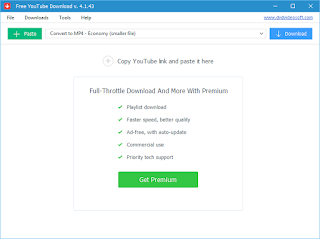
Simple Steps to Download YouTube Videos in MP4 With Free YouTube Download:
1.Copy links from YouTube and tap “+ Paste” in the interface, and the software starts to parse the link;
2.When the link is parsed successfully, you are allowed to choose output format, quality, location, and name;
3.Start to download videos.
To Sum It Up
All in all, Gihosoft TubeGet and Free YouTube Download manage to get their jobs done pretty well. Almost all YouTube videos can be downloaded and saved on your computer in MP4 format with these two products. There are also other apps available that can do the same job as these two products aforementioned, I’d love to know what else you would add to this list.
More Article: How to Download Instagram Video
Whatever the reason, it makes sense to download YouTube videos, so that you can watch them at anytime, anywhere you like. If you want to play the videos you save from YouTube, you’d better download it in MP4 format, as it’s the common general format and every video player can support it. So here I’m going to show you two free MP4 downloader to download YouTube videos in MP4 for free.
1. Download YouTube Videos in MP4 with Gihosoft TubeGet
Gihosoft TubeGet is a free-to-use application dedicated to downloading YouTube clips and converting them to different formats like MP4, AVI, MKV and formats compatible with different mobile devices like iPhone and Android.
Gihosoft TubeGet comes in handy if you're looking for an easy tool to download YouTube videos in MP4 format. It enables you to save videos from YouTube in just 3 easy steps.

3 Easy Steps to Download YouTube Videos in MP4 Using Gihosoft TubeGet:
1.Copy the video link you want to download from YouTube, open Gihosoft TubeGet and click “+ Paste URL” to paste it into the program;
2.After the program analyze the link, it will pop up a new interface for you to choose your right resolution and saving location.
3.Finally tap “Download” to start the downloading process.
2.Download YouTube Videos in MP4 with Free YouTube Download
Like Gihosoft TubeGet, Free YouTube Download is also one of the most popular desktop tools for downloading YouTube videos. It’s really easy to use and has all the features you need without any bells and whistles you don’t like. All you need to do to download a video from YouTube is an active internet connection and the video URL you want to save.

Simple Steps to Download YouTube Videos in MP4 With Free YouTube Download:
1.Copy links from YouTube and tap “+ Paste” in the interface, and the software starts to parse the link;
2.When the link is parsed successfully, you are allowed to choose output format, quality, location, and name;
3.Start to download videos.
To Sum It Up
All in all, Gihosoft TubeGet and Free YouTube Download manage to get their jobs done pretty well. Almost all YouTube videos can be downloaded and saved on your computer in MP4 format with these two products. There are also other apps available that can do the same job as these two products aforementioned, I’d love to know what else you would add to this list.
More Article: How to Download Instagram Video
Thursday, August 3, 2017
How to Download YouTube Videos with Different kinds of Downloading Tools
There are lots of videos in YouTube that worth downloading. Maybe it’s a blockbuster from your favorite celebrities, or just a warm video shared by your friends and families, or maybe it’s just some funny and amusing small clips and you want to keep it to watch over and over again. To download these videos, you will need the help of a video downloader tool. So here I will walk you through how to use several YouTube downloader tools of different kind, just read it through and you will make it clear.

4. CMD YouTube Downloader
YouTube-dl is a CMD YouTube downloader. When you finish downloading youtube-dl, you should put it in your personal folder in the Users directory. Now you go to YouTube and copy the URL of the videos you want to download, then just press “WIN + R” and input “cmd” in the search bar to open the command prompt, here it comes to the most crucial step. Type this following command: “youtube-dl video-link”, or “youtube-dl playlist-link” if you want to download a playlist, then press “Enter”, and the video starts to download, when it finishes downloading, you will find the video in the same location as the youtube-dl software.
To select the video quality, you can use command “youtube-dl -F video-link”, here’s an example:
The best quality is 22, if you want to download it, just type the command “youtube-dl -F 22 video-link”, in this way you can download any resolution this video supports. If you have enough computer space and desire to download the video of best quality, then you should use this command ”youtube-dl -F bestvideo+bestaudio video-link”.
The Bottom Line
All the video downloader tool aforementioned work smoothly on their respective way, go and try any of them. And just don’t just rely on this list, maybe you will find a YouTube downloader freeware more effective than these.
1. Desktop YouTube Downloader
When you want to download videos, the first thing comes to your mind is to install a desktop video downloader software, that’s definitely a good solution to all problems. Among all the desktop YouTube downloader, we can assure you that Gihosoft TubeGet is an outstanding one, as it is completely free without any bundled software, ads, or malicious code etc. With its simple and intuitive interface, even a newbie can master all its features in just a few minutes without any effort, let alone a expert. You just need 3 easy steps to download videos from YouTube with Gihosoft TubeGet: Copy and paste the URL of the video, choose the right resolution and saving location, and the last step is downloading.

When you want to download videos, the first thing comes to your mind is to install a desktop video downloader software, that’s definitely a good solution to all problems. Among all the desktop YouTube downloader, we can assure you that Gihosoft TubeGet is an outstanding one, as it is completely free without any bundled software, ads, or malicious code etc. With its simple and intuitive interface, even a newbie can master all its features in just a few minutes without any effort, let alone a expert. You just need 3 easy steps to download videos from YouTube with Gihosoft TubeGet: Copy and paste the URL of the video, choose the right resolution and saving location, and the last step is downloading.

2. Online YouTube Downloader
As the rapid development of manufacturing, the electronic devices nowadays have higher and higher pixels than before, which makes the pictures and videos all have more MBs than before. I bet that almost everyone wants to save their space, that’s the reason why online sites all the rage. For online sites, KeepVid stands out, as it can perfectly finish the downloading task smoothly. Just like desktop software, you have to copy and paste the URL of the video, then it starts to download. The downloading speed is blazing fast, you just have to sit tight and wait the videos to be downloaded.
3. Plugin YouTube Downloader
As the extension of browser is becoming more and more popular, you can also download YouTube videos with a plugin. There is a plugin named Tampermonkey, you can download it from Google web store or add-ons for Firefox. When installed successfully, it will add a download button to YouTube pages, then you can download your videos directly on the video page you are watching.

4. CMD YouTube Downloader
YouTube-dl is a CMD YouTube downloader. When you finish downloading youtube-dl, you should put it in your personal folder in the Users directory. Now you go to YouTube and copy the URL of the videos you want to download, then just press “WIN + R” and input “cmd” in the search bar to open the command prompt, here it comes to the most crucial step. Type this following command: “youtube-dl video-link”, or “youtube-dl playlist-link” if you want to download a playlist, then press “Enter”, and the video starts to download, when it finishes downloading, you will find the video in the same location as the youtube-dl software.
To select the video quality, you can use command “youtube-dl -F video-link”, here’s an example:
The best quality is 22, if you want to download it, just type the command “youtube-dl -F 22 video-link”, in this way you can download any resolution this video supports. If you have enough computer space and desire to download the video of best quality, then you should use this command ”youtube-dl -F bestvideo+bestaudio video-link”.
The Bottom Line
All the video downloader tool aforementioned work smoothly on their respective way, go and try any of them. And just don’t just rely on this list, maybe you will find a YouTube downloader freeware more effective than these.
Thursday, July 6, 2017
Free YouTube to MP3 Converter - How to Convert YouTube Videos to MP3
YouTube can not only be used to watch videos, but also it offers a way for users to listen and enjoy the good melody of music. However, this music are all in the form of MV, which means you have to watch the videos at the same time while listening to the music. So how could one get rid of the video part and only extract the audio portion? No worry, a YouTube to MP3 converters can help you with that. Since there are too many YouTube to MP3 converter on web, so here we cherry-pick 3 best free YouTube to MP3 converters that enable you to convert YouTube videos to MP3 in an fast and easy way.

Guidelines on How to Convert YouTube Videos to MP3 Using Gihosoft TubeGet
Step 1: Copy the URL of the video from YouTube, and paste it into the program;
Step 2: Select “YouTube to MP3”;
Step 3: Click “Download” and start the downloading process.
2. Online Video Converter
Online Video Converter is an online YouTube to MP3 converter. If you do not want to download any software to take up your computer space, this online tool gives you a choice. You can utilize this online video convert tool to download YouTube videos as MP3 files with HD audio quality. It’s compatible with many online video sites except YouTube, such as Vimeo, Dailymotion and Liveleak.

Instructions on How to Convert YouTube Videos to MP3 with Online Video Converter
Step 1: Copy and paste the video link that you want to convert.
Step 2: Select ".mp3" in the format field.
Step 3: Click "Start" button to initiate the conversion.
Step 4: Download the file from the link provided.
3. YouTube-mp3.org
YouTube-mp3.org is also an online YouTube to MP3 converter like Online Video Converter mentioned above. It’s an easy-to-use online tool for converting videos to MP3. You do not need an account, the only thing you need is a YouTube video URL. It will extract the audio track of the video and convert it to MP3 so that you will be able to download it. Because it’s an online download tool, so you can use it with your Mac, Linux PC or even an Android or IOS device.
3 Best Free YouTube to MP3 Converters to Extract Audio from YouTube Video
1. Gihosoft TubeGet
Gihosoft TubeGet, is a free YouTube downloader tool that can get videos from YouTube, as you can see from its name. Except saving videos from YouTube, it can also convert YouTube videos to audio, like M4A, MP3 and AAC etc.
1. Gihosoft TubeGet
Gihosoft TubeGet, is a free YouTube downloader tool that can get videos from YouTube, as you can see from its name. Except saving videos from YouTube, it can also convert YouTube videos to audio, like M4A, MP3 and AAC etc.

Guidelines on How to Convert YouTube Videos to MP3 Using Gihosoft TubeGet
Step 1: Copy the URL of the video from YouTube, and paste it into the program;
Step 2: Select “YouTube to MP3”;
Step 3: Click “Download” and start the downloading process.
2. Online Video Converter
Online Video Converter is an online YouTube to MP3 converter. If you do not want to download any software to take up your computer space, this online tool gives you a choice. You can utilize this online video convert tool to download YouTube videos as MP3 files with HD audio quality. It’s compatible with many online video sites except YouTube, such as Vimeo, Dailymotion and Liveleak.

Instructions on How to Convert YouTube Videos to MP3 with Online Video Converter
Step 1: Copy and paste the video link that you want to convert.
Step 2: Select ".mp3" in the format field.
Step 3: Click "Start" button to initiate the conversion.
Step 4: Download the file from the link provided.
3. YouTube-mp3.org
YouTube-mp3.org is also an online YouTube to MP3 converter like Online Video Converter mentioned above. It’s an easy-to-use online tool for converting videos to MP3. You do not need an account, the only thing you need is a YouTube video URL. It will extract the audio track of the video and convert it to MP3 so that you will be able to download it. Because it’s an online download tool, so you can use it with your Mac, Linux PC or even an Android or IOS device.
More Post: How to Download Instagram Video
Monday, July 3, 2017
How To Download YouTube Videos On Windows, Mac, Android & iPhone
YouTube has been an inevitable video platform for us to watch whatever we like, like TV series, MV, living sports, game tutorials and software guideline etc. As the development of device technology, we can now watch YouTube videos on Windows and Mac computer, or Android and iPhone mobile phones or tablets. Although we can watch them directly online, but it will not work when you can’t connect to any Internet source, so it makes sense to download them first and then you can watch these videos at any time, anywhere you like. Here in this article I will introduce several YouTube downloader tools of different platform for you to download YouTube videos for free.
1. How To Download YouTube Videos On Windows & Mac
To download YouTube videos on Window & Mac, Gihosoft TubeGet is not a bad idea as it has both Windows and Mac version. As a YouTube downloader, it provides an easy way for users to download and save videos from YouTube to computer. With Gihosoft TubeGet, you can download video resolution up to 4k, and convert it to popular video formats. Except downloading videos, it also has the feature of extracting audio directly from videos without downloading the whole videos.
Guidelines On How To Download YouTube Videos On Windows & Mac With Gihosoft TubeGet
Step 1. Copy the URL of the video from the websites and click the paste button, the software starts to analyze the URL;
Step 2. A new interface will pop up, it’s your choice to select the resolution and saving location. If you prefer the audio instead of whole video, you’d better click the “YouTube to MP3” to convert the video to MP3 directly.
Step 3. The last step, download. When downloading , you can set the maximum one-time download number and limit the bandwidth. Now you just wait until all the contents are finished.
2. How To Download YouTube Videos On Android & iPhone
To download YouTube videos on Android & iPhone, you can give TubeMate a shot, as it’s a very popular app for downloading videos from YouTube of both Windows and IOS version. It allows users to download YouTube videos directly on mobile devices at a fast speed and in high quality.
How To Download YouTube Videos On Android & iPhone With TubeMate?
Step 1. When you want to download TubeMate, you should keep in mind that TubeMate isn’t on Google Play, and there are many fake TubeMate on it. You should only download it from its verified collaborated download site on its official website.
Step 2. You can directly search for any keywords you like to find your favorite videos as TubeMate has a search bar. You can also copy and paste the URL of YouTube videos directly instead. When selecting a video, you are given the choice to download or watch it. If you like the video, you can press the green downloading arrow to keep it on your phone. At that moment, a new interface will pop up on which you can select the video quality you want to download.
Step 3. After you choose your ideal resolution, just click the Download button, the app will start to download. You should note that the downloaded videos will be stored on your SD card by default, you can change the directory location at any time as you wish.
Also Read: 12 Best Video Editor and Maker Apps for Android in 2019
To download YouTube videos on Window & Mac, Gihosoft TubeGet is not a bad idea as it has both Windows and Mac version. As a YouTube downloader, it provides an easy way for users to download and save videos from YouTube to computer. With Gihosoft TubeGet, you can download video resolution up to 4k, and convert it to popular video formats. Except downloading videos, it also has the feature of extracting audio directly from videos without downloading the whole videos.
Guidelines On How To Download YouTube Videos On Windows & Mac With Gihosoft TubeGet
Step 1. Copy the URL of the video from the websites and click the paste button, the software starts to analyze the URL;
Step 2. A new interface will pop up, it’s your choice to select the resolution and saving location. If you prefer the audio instead of whole video, you’d better click the “YouTube to MP3” to convert the video to MP3 directly.
Step 3. The last step, download. When downloading , you can set the maximum one-time download number and limit the bandwidth. Now you just wait until all the contents are finished.
To download YouTube videos on Android & iPhone, you can give TubeMate a shot, as it’s a very popular app for downloading videos from YouTube of both Windows and IOS version. It allows users to download YouTube videos directly on mobile devices at a fast speed and in high quality.
How To Download YouTube Videos On Android & iPhone With TubeMate?
Step 1. When you want to download TubeMate, you should keep in mind that TubeMate isn’t on Google Play, and there are many fake TubeMate on it. You should only download it from its verified collaborated download site on its official website.
Step 2. You can directly search for any keywords you like to find your favorite videos as TubeMate has a search bar. You can also copy and paste the URL of YouTube videos directly instead. When selecting a video, you are given the choice to download or watch it. If you like the video, you can press the green downloading arrow to keep it on your phone. At that moment, a new interface will pop up on which you can select the video quality you want to download.
Step 3. After you choose your ideal resolution, just click the Download button, the app will start to download. You should note that the downloaded videos will be stored on your SD card by default, you can change the directory location at any time as you wish.
Also Read: 12 Best Video Editor and Maker Apps for Android in 2019
Wednesday, June 21, 2017
How to Download YouTube Subscription/Channel Videos
YouTube is a great place for us to learn something valuable, like a new language, a musical instrument, or a professional software etc. For those who intends to learn a new skill, it’s a good idea to subscribe the YouTube channel of someone famous in this field.
However, it is not always possible to watch these subscribed videos online, either because the video has been removed or simply because you are not connected to any Internet source. So it makes sense to download the whole channel videos you subscribe, then you can play them at anytime, anywhere, with or without an Internet connection. Therefore, here I will introduce you two ways to download YouTube channels.
1. Download YouTube Channel/Subscription Videos With Desktop Software
To download YouTube channel videos to your computer, you can either try a desktop software or an online download tool. For desktop software, there are a myriad of products on web. If you are tired of pop-up ads, plugins or bundled software, you should jump into Gihosoft TubeGet without hesitation. It’s a freeware that contains no ads, plugins, malicious code or bundled software, completely clean and safe. To download subscription videos from YouTube, you can utilize Gihosoft TubeGet with just 3 easy steps to complete the download process: Copy and paste the URL of the YouTube channel, select the resolution and saving directory, the final step is click “Download” to save the YouTube videos.
2. Download YouTube Channel/Subscription Videos With Online Download Tool
Compared with desktop software, online download tool will not take up your computer disk space, but it may not work as fast and smoothly as desktop software. ClipConverter.cc, for example, works efficiently as a online download tool. Although an online site, it has all the features a download tool can have. It can download videos up to 8K resolution, can save and convert videos to mp3 audio directly without downloading the whole video, and it can also convert videos to different formats. The operation step is just the same as Gihosoft TubeGet, you just need to copy and paste the URL, choose the resolution, and the last step is download.
The Bottom Line
The above are two ways to download YouTube subscription videos from YouTube, so just try them and save the videos to your computer fro further study.
However, it is not always possible to watch these subscribed videos online, either because the video has been removed or simply because you are not connected to any Internet source. So it makes sense to download the whole channel videos you subscribe, then you can play them at anytime, anywhere, with or without an Internet connection. Therefore, here I will introduce you two ways to download YouTube channels.
1. Download YouTube Channel/Subscription Videos With Desktop Software
To download YouTube channel videos to your computer, you can either try a desktop software or an online download tool. For desktop software, there are a myriad of products on web. If you are tired of pop-up ads, plugins or bundled software, you should jump into Gihosoft TubeGet without hesitation. It’s a freeware that contains no ads, plugins, malicious code or bundled software, completely clean and safe. To download subscription videos from YouTube, you can utilize Gihosoft TubeGet with just 3 easy steps to complete the download process: Copy and paste the URL of the YouTube channel, select the resolution and saving directory, the final step is click “Download” to save the YouTube videos.
2. Download YouTube Channel/Subscription Videos With Online Download Tool
Compared with desktop software, online download tool will not take up your computer disk space, but it may not work as fast and smoothly as desktop software. ClipConverter.cc, for example, works efficiently as a online download tool. Although an online site, it has all the features a download tool can have. It can download videos up to 8K resolution, can save and convert videos to mp3 audio directly without downloading the whole video, and it can also convert videos to different formats. The operation step is just the same as Gihosoft TubeGet, you just need to copy and paste the URL, choose the resolution, and the last step is download.
The Bottom Line
The above are two ways to download YouTube subscription videos from YouTube, so just try them and save the videos to your computer fro further study.
More Articles: How to Download Twitter Video
Thursday, June 8, 2017
How to Download YouTube Playlist
Sometimes when you are watching a series of YouTube videos, such as a new language, or a new skill, usually these videos are stored in a playlist, so that you can watch them one by one. However, it is not always possible to view videos online, either because the video has been removed or simply because you are not connected to any Internet source. So it makes sense to download the all the playlist videos to your computer and save them on your mobile devices, in this way you can watch them at any time you like.
In this post, I’m going to introduce you several tools that will let you download an entire YouTube playlist in just a few easy clicks. Just read it through and you will catch the point immediately.
1. Download YouTube Playlist with Gihosoft TubeGet
Speaking of YouTube downloader, it’s easy to find many of them on the Internet. However, the bad news is that many of them are saturated with ads, bundled software or malicious code, but Gihosoft TubeGet is one of the few exceptions. Except download playlist from YouTube, it can also convert YouTube videos to audio directly. The downloading process is quite simple, you just need to copy and paste the link of YouTube playlist, select the right format and saving location, and it starts to download.

2. Download YouTube Playlist with Youtube-dl
If you are familiar with command prompt of Windows, then you can give youtube-dl a try. This method is quite easy, cause it only requires a very few simple command. You can learn to download YouTube playlist using youtube-dl following these simple steps below:
Step 1: Download youtube-dl from its website, this will download an exe file. If you open it, it will close automatically. No need to worry, it is supposed to work that way. This file should be placed in your personal folder in the Users directory.
Step 2: Open your command prompt. To open cmd, Press “Win + R” and search cmd. Type the following command: “youtube-dl youtube-playlist-link”. (Paste your youtube playlist link in place of the youtube-playlist-link), then press Enter and the video playlist starts to download, as you can see the download process bar on the interface.
Now you just sit back and watch all your videos being downloaded one by one. Even if there is some interruption or you want to download some other time, enter the command again, and it will automatically start again from where it stopped. All the videos will be downloaded in the same place as the youtube-dl software.
3. Download YouTube Playlist with ClipConverter.CC
If you are tired of downloading anything and want to directly download YouTube playlist through your browser, then you can try online download site, ClipConverter.CC. It’s a powerful online video downloader which enable users to download videos from YouTube and other 10,000+ hot websites, and the resolution can up to 4K. Besides, it also has a built-in converter which allows users to convert videos to different formats. Moreover, this conversion function also provides users an opportunity to extract audios directly from videos, the audio formats include MP3, M4A and AAC.
The Verdict
All the tools aforementioned are easy and practical for downloading YouTube playlist, go to YouTube and download your favorite playlist using this download tools.
More Related Articles: How to Download Video from Twitter
How to Cut Videos for Free
In this post, I’m going to introduce you several tools that will let you download an entire YouTube playlist in just a few easy clicks. Just read it through and you will catch the point immediately.
Speaking of YouTube downloader, it’s easy to find many of them on the Internet. However, the bad news is that many of them are saturated with ads, bundled software or malicious code, but Gihosoft TubeGet is one of the few exceptions. Except download playlist from YouTube, it can also convert YouTube videos to audio directly. The downloading process is quite simple, you just need to copy and paste the link of YouTube playlist, select the right format and saving location, and it starts to download.

2. Download YouTube Playlist with Youtube-dl
If you are familiar with command prompt of Windows, then you can give youtube-dl a try. This method is quite easy, cause it only requires a very few simple command. You can learn to download YouTube playlist using youtube-dl following these simple steps below:
Step 1: Download youtube-dl from its website, this will download an exe file. If you open it, it will close automatically. No need to worry, it is supposed to work that way. This file should be placed in your personal folder in the Users directory.
Step 2: Open your command prompt. To open cmd, Press “Win + R” and search cmd. Type the following command: “youtube-dl youtube-playlist-link”. (Paste your youtube playlist link in place of the youtube-playlist-link), then press Enter and the video playlist starts to download, as you can see the download process bar on the interface.
Now you just sit back and watch all your videos being downloaded one by one. Even if there is some interruption or you want to download some other time, enter the command again, and it will automatically start again from where it stopped. All the videos will be downloaded in the same place as the youtube-dl software.
3. Download YouTube Playlist with ClipConverter.CC
If you are tired of downloading anything and want to directly download YouTube playlist through your browser, then you can try online download site, ClipConverter.CC. It’s a powerful online video downloader which enable users to download videos from YouTube and other 10,000+ hot websites, and the resolution can up to 4K. Besides, it also has a built-in converter which allows users to convert videos to different formats. Moreover, this conversion function also provides users an opportunity to extract audios directly from videos, the audio formats include MP3, M4A and AAC.
The Verdict
All the tools aforementioned are easy and practical for downloading YouTube playlist, go to YouTube and download your favorite playlist using this download tools.
More Related Articles: How to Download Video from Twitter
How to Cut Videos for Free
Thursday, June 1, 2017
How to Download Embedded YouTube Videos from Website
Sometimes when you are looking for tutorials about technical skills, the tutorials provides you step-by-step guidelines with pictures and videos from YouTube so that you can comprehend the key content quickly. Here comes the question, if you want to save the video to your computer for playback, then what you should do? No worry, here in this article, I’m going to show you how to download this embedded YouTube video from website in an easy way.
Simple Steps on How to Download Embedded YouTube Videos
Step 2. As the URL of embedded YouTube video starts with "https://www.youtube.com/embed/”, so you should type this link in the box and press Enter. After that, a highlighted link will come into your sight, and that’s the link of the embedded YouTube video. Just copy the link within the double quotations starts with src=””.
Step 3. Download and install a software named Gihosoft TubeGet on Google. Then just click “+Paste URL” to paste the embedded URL into the software, this software will automatically parse the link. After it’s finished, select the resolution, format, whilst choose a saving location for the video. Click “Download”, now you just sit tight and wait for the downloading process finished.
Simple Steps on How to Download Embedded YouTube Videos
Step 1. Right click your mouse on the blank of the page and select ”View page source”, then a new interface will come out. At this time, just press “Ctrl + F” on the keyboard, and you will see a small dialog box in the upper-right corner of the page.

Thursday, May 11, 2017
How to Download YouTube Videos Using Youtube-dl
When you are looking for a way to download YouTube videos, you can find many answers on Google or Quora, and there are also multitude of YouTube downloader, it’s definitely difficult for a novice to choose from. So here in this post, I’m going to introduce you a practical way to download videos from YouTube, all the tool you need is youtube-dl.
You can type the command of “youtube-dl -help” to reveal some extra features such as to download from a particular number or to download in reverse order, etc. To select the video quality, you can use command “youtube-dl -F video-link”, here’s an example:

The best quality is 22, if you want to download it, just type the command “youtube-dl -F 22 video-link”, in this way you can download any resolution this video supports. If you have enough computer space and desire to download the video of best quality, then you should use this command ”youtube-dl -F bestvideo+bestaudio video-link”.
Compared with other YouTube downloader, youtube-dl seems a little technical to some extent, since you have to know the basic knowledge of command prompt(cmd) before you want to use it. When you finish downloading youtube-dl, you should put it in your personal folder in the Users directory. Now you go to YouTube and copy the URL of the videos you want to download, then just press “WIN + R” and input “cmd” in the search bar to open the command prompt, here it comes to the most crucial step. Type this following command: “youtube-dl video-link”, or “youtube-dl playlist-link” if you want to download a playlist, then press “Enter”, and the video starts to download, when it finishes downloading, you will find the video in the same location as the youtube-dl software.
You can type the command of “youtube-dl -help” to reveal some extra features such as to download from a particular number or to download in reverse order, etc. To select the video quality, you can use command “youtube-dl -F video-link”, here’s an example:

The best quality is 22, if you want to download it, just type the command “youtube-dl -F 22 video-link”, in this way you can download any resolution this video supports. If you have enough computer space and desire to download the video of best quality, then you should use this command ”youtube-dl -F bestvideo+bestaudio video-link”.
More Articles: How to Download Twitter Video
Thursday, May 4, 2017
How to Download and Convert YouTube Playlist Videos to MP3 Audio
Sometimes when you want to watch a whole TV series on YouTube, perhaps tutorials of a new language or a hobby, it’s a good idea to download the whole videos as a playlist so that we can watch them whenever we like. But if we only want to listen to the whole audio of some relaxing music, it makes sense to convert the video playlist to audio so that we can just close our eyes and listen the melody comfortably.
So how to download and convert YouTube playlist videos to audio? All you need is a software named Gihosoft TubeGet. In this article, I will introduce you how to use it to convert YouTube playlist videos in MP3 audio.
Step-by-step guide on how to utilize Gihosoft TubeGet to download playlist to audio
2. Copy and paste the URL of the playlist. Find the playlist you want to download on YouTube, then copy the link of the playlist in the address line. Open Gihosoft TubeGet and click “+Paste URL”, the software will analyze the URL shortly. After it parse successfully, a new interface will appear.
3. Select resolution and download type. In the new interface, select the video resolution you want to download, and don’t forget to tick “YouTube to MP3” since you want to keep the audio.
4. Download. Now you just click the “Download” to start the downloading process.
So how to download and convert YouTube playlist videos to audio? All you need is a software named Gihosoft TubeGet. In this article, I will introduce you how to use it to convert YouTube playlist videos in MP3 audio.
Step-by-step guide on how to utilize Gihosoft TubeGet to download playlist to audio
1. Download Gihosoft TubeGet. Go to the official website of Gihosoft TubeGet to download and install the software. The good news is that is doesn’t have any plugin or bundled software, so you can install it at ease.
2. Copy and paste the URL of the playlist. Find the playlist you want to download on YouTube, then copy the link of the playlist in the address line. Open Gihosoft TubeGet and click “+Paste URL”, the software will analyze the URL shortly. After it parse successfully, a new interface will appear.
3. Select resolution and download type. In the new interface, select the video resolution you want to download, and don’t forget to tick “YouTube to MP3” since you want to keep the audio.
4. Download. Now you just click the “Download” to start the downloading process.
Thursday, April 27, 2017
How to Download Music from SoundCloud
SoundCloud is an online song music platform where artists can create, upload and share their recordings, and they can also interact with their fans. So while you are listening some beautiful musics on SoundCloud, you may wish to save them to your mobile devices so that you can enjoy the good melody whenever you like. Thankfully, there are many tools that allow you to save SoundCloud songs with a few clicks. Here are some solutions to download music from SoundCloud to your electronic devices.
1. Download SoundCloud Music with Desktop Software - Gihosoft TubeGet
Download music from SoundCloud with Gihosoft TubeGet is easy as pie as you just need a few clicks without any effort. So here I will lay out the steps.
2. A new interface will pop up prompt you to select the resolution and saving location. As this is an audio file, you’d better click “YouTube to MP3” instead of “Only Download”.
3. The last step, download. While downloading , you can download up to 5 files at a time and limit the bandwidth. Now you just wait until all the contents are finished.
2. Download SoundCloud Songs Directly Online with SoundCloud Downloader
If you are tired of installing a software every time when you need to download something, then SoundCloud Downloader will satisfy your needs. It’s an online SoundCloud music downloader, free and easy to use.
1. You just go to the SoundCloud website and copy the link of the song you want to download and open SoundCloud Downloader, then paste the URL into the box.
2. A new menu will pop up, you just need to click “Download Link” and set a saving location for the video.
3. Click “Save” to start the downloading process.
1. Download SoundCloud Music with Desktop Software - Gihosoft TubeGet
Download music from SoundCloud with Gihosoft TubeGet is easy as pie as you just need a few clicks without any effort. So here I will lay out the steps.

1. Copy the URL of the song from SoundCloud and click “+Paste URL”, then the software will analyze the link automatically;
2. A new interface will pop up prompt you to select the resolution and saving location. As this is an audio file, you’d better click “YouTube to MP3” instead of “Only Download”.
3. The last step, download. While downloading , you can download up to 5 files at a time and limit the bandwidth. Now you just wait until all the contents are finished.
2. Download SoundCloud Songs Directly Online with SoundCloud Downloader
If you are tired of installing a software every time when you need to download something, then SoundCloud Downloader will satisfy your needs. It’s an online SoundCloud music downloader, free and easy to use.
1. You just go to the SoundCloud website and copy the link of the song you want to download and open SoundCloud Downloader, then paste the URL into the box.
2. A new menu will pop up, you just need to click “Download Link” and set a saving location for the video.
3. Click “Save” to start the downloading process.
More Articles: How to Download Video from Facebook
Subscribe to:
Posts (Atom)